Selecting multiple objects
To select multiple objects
- Press Ctrl + A to select all rows of a worksheet.
- After selecting the first row, you can select all rows of the worksheet by clicking Shift + Ctrl + down arrow key.
- After selecting a starting line, you may select subsequent rows of the worksheet by clicking Shift + down arrow key.
- After selecting a starting line, you may select preceding rows of the worksheet by clicking Shift + up arrow key.
- After selecting a starting line, you can select subsequent row areas (33 rows) of the worksheet by clicking Shift + Image/Page down.
- After selecting a starting line, you can select preceding row areas (33 rows) of the worksheet by clicking Shift + Image/Page up.
- After selecting a starting line, hold down Ctrl and click the left mouse button to add rows to the selection.
- After selecting a starting line, hold down Shift and click the left mouse button to add a row area to the selection.
Selected rows are marked in black. To deselect all previously selected rows, click any cell in the Filter row.
After selecting a starting cell, you can select a specific column area of the same column by means of the Shift key and nonadjacent cells of the same column by means of the Ctrl key. In contrast to that, it is not possible to select cells from different columns. For the selection of cells in columns, you can use the arrow and image/page keys as described for the selection of rows.
To ensure an ideal and stable processing, worksheets should not contain more than 10000 rows. Should there be more rows than that, the provision of data is aborted in case you select more than 400 rows for editing; you then receive the following message:
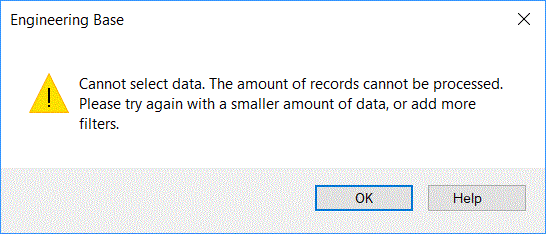
The selection of cells of a column is not affected by this upper limit.
If you select more than 400 rows as described above when you start to edit your worksheet, for example by selecting all rows via Ctrl + A, the complete data of the worksheet is provided and subsequent selections of rows can be executed efficiently.