Filling data within a column
A fill handle is a feature to copy the content of cells to adjacent cells.
You can quickly fill in several types of data series on a worksheet by selecting cells and dragging the small square (fill handle) in the lower right corner of the selection area.
To fill in a series of numbers, dates, or other items
- Select two or more adjacent cells.
- Drag the fill handle across the cells you want to fill, then release the mouse button.
- This continues the series of numbers, number/text combinations, dates, or time periods based on the pattern established by the selected cells.
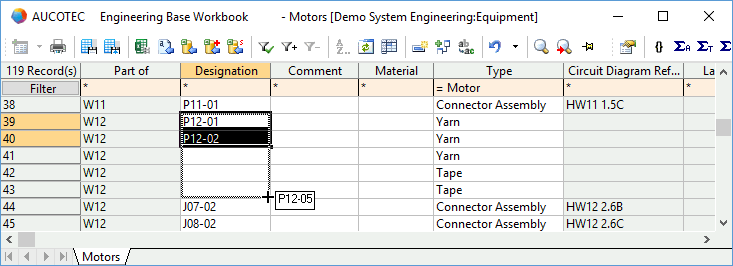
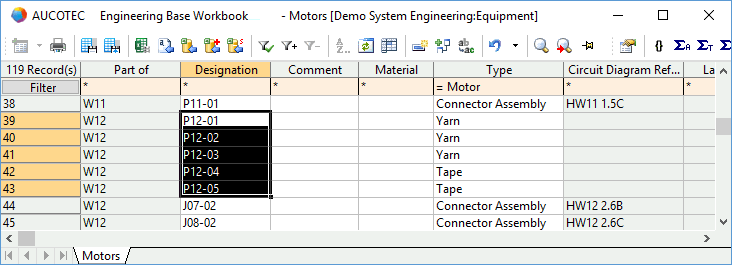
To copy data within a column
- Select the cell you want to copy.
- Drag the fill handle across the cells you want to fill, then release the mouse button.
- This copies the data from the first cell.
If you want to copy a material to other objects by dragging down the selected material cell in the Material column, you can define how the data is to be copied by making settings under Database Properties/Worksheets.
Copy data from start object | The data of the start object is inserted into all empty attributes of the target object. All filled attributes of the target object are overwritten by the data of the start object if the property From catalog is selected at the attribute of the start object. |
Copy data from catalog object | The data of the catalog object is inserted into all empty attributes of the target object. All filled attributes of the target object are overwritten by the data of the catalog object if the property From catalog is selected at the attribute of the catalog object. |
When you apply the fill function on the Object template attribute at an object, data from the object library defined in the project is copied to the cells. The Object template attribute has to be defined on the object that is to be copied beforehand.