Editing Information
Information in worksheets can be edited in a fast and intuitive way.
To edit worksheet information
- Open the worksheet.
To simplify the navigation in worksheets with a high number of rows and columns, the row number and the column header of the selected worksheet cell are highlighted in orange. On selecting several cells, all related row numbers and column headers are highlighted.
- Select the row and enter the information.
- If the data in the cell is created with the help of a formula attribute , the change can be executed in a subsequent dialog opened via F2 or the shortcut menu.
Within a column, you can copy and paste the contents of such a cell using Ctrl+C and Ctrl+V.
The information is stored in the database after closing the modification dialog with OK.
- If the cell contains an Attribute with unit, you can change the displayed unit. For this, select the blank space and the unit after the numeric value. The available units will be offered for selection. The numerical value of the attribute will be converted to the new unit. The information will be stored in the database once you select another cell.
The display of the available units is defined by Selecting the System of Units and User Defined Views on Available Systems of Units.
- The contents of the other cells can be edited directly. The information is stored in the database as soon as you select another cell.
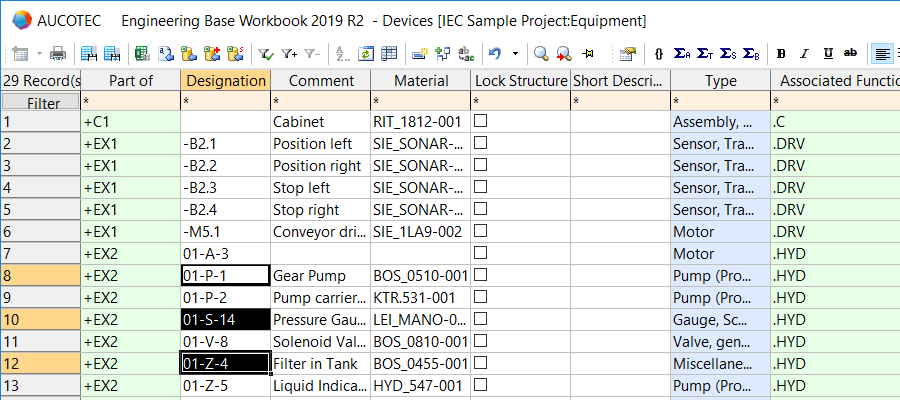
Following multiple selection of cells in a worksheet column, you can change the cell contents of all selected cells with a text entry. Following multiple selection, you can likewise jointly activate or deactivate the check boxes for all selected cells of a column.
The information of cells whose data is created via formula attributes cannot be edited if the formula attributes refer to more than one data object.