Using buttons
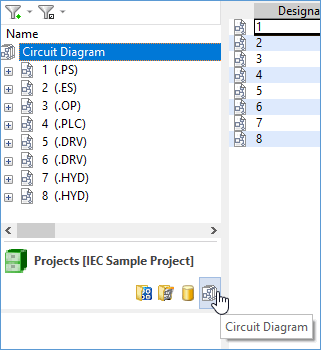
Buttons can be used to organize the navigation pane for a better overview. You can add new buttons or remove existing ones as needed. The buttons are arranged below the navigation pane.
If the large buttons take up too much space, point to the horizontal splitter bar between the buttons and the navigation pane. When the pointer turns into a double-headed arrow , drag the splitter bar down. This converts the large buttons into small buttons in a single row of icons at the bottom of the navigation pane.

To add a new button
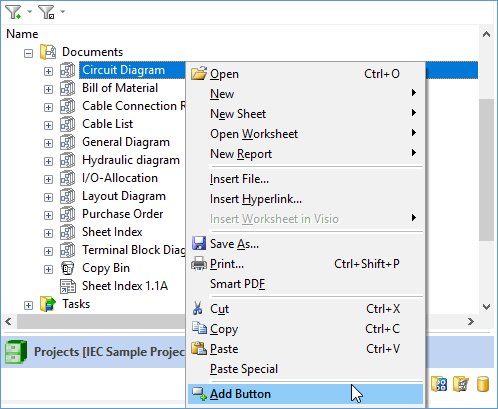
- Select the object in the navigation pane.
- On the shortcut menu or on the Edit menu, click Add Button.
- The new button is opened and displays the selected object as the first level.
To close a button
- Select the button.
- On the shortcut menu, click Close.
- The button is closed and removed from the button area below the navigation pane.
The standard buttons cannot be closed.