Navigation pane
The navigation pane is a view that displays the database content in an arborescent structure. Use the list buttons to switch between the Projects, Stencils, Catalogs, and Database Explorer.
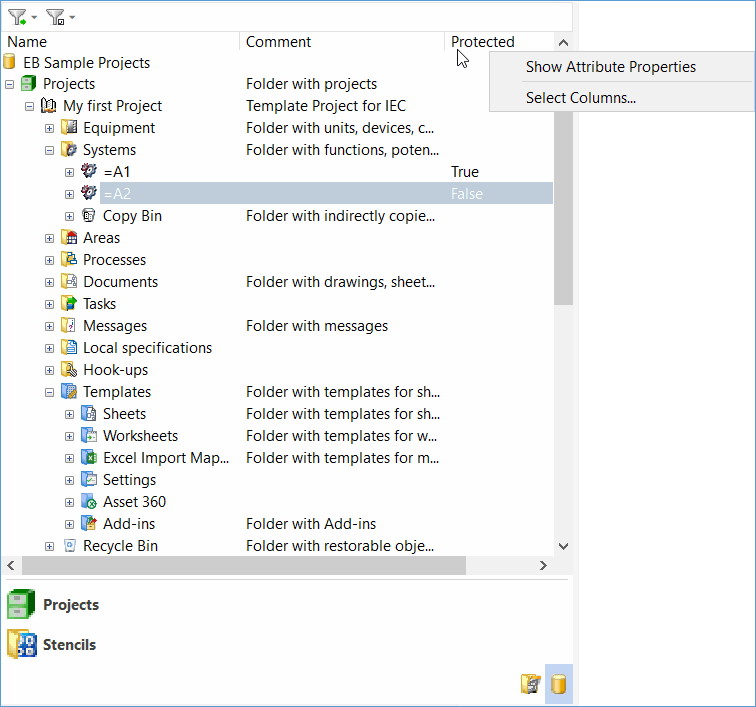
In the navigation pane, you can also display further attributes besides the name of the displayed objects, or you can open the Attribute Properties dialog of a column (attribute) you have selected.
To display further columns in the navigation pane
- Right-click a column header and select Select Columns on the shortcut menu.
- This opens the Select Columns dialog. All attributes displayed as columns are highlighted in the upper area.
If you use the option Show comment attributes, the comments activated under Database Properties General/Attribute View are also offered for selection.
- In the lower area, select the attributes that are to be displayed as additional columns, or remove the check mark of an attribute in the upper area.
- Click OK.
The content of Boolean attributes, e.g. attribute Protected, is represented as True (selected) or False (not selected).
In Visio, you can also add further columns in the Engineering Base Explorer.
You can create buttons to organize individual views in the navigation pane.