Copying a drawing or sheet and merging objects
By using drag and drop, you can copy drawings or sheets within a project or from one project to another and merge equipment of the associated objects. This copies the drawing or sheet and merges the objects of the source with the objects of the target.
The structure of the source object is only added to the structure of the destination object if the merge reference matches for both objects. The merge reference consists of the following attributes, if they are available on the object:
- Object name (AID5) + TID (AID7) + Pin position (AID250)
- or Position (AID261) + TID (AID7) + Pin position (AID250), if the object name is empty for the source and destination object.
If the merge references match, the destination object is kept and the associations (e.g. wire targets) of the source object are copied to the destination object if this is permitted for the destination object.
All source objects for which the merge references do not match are copied to the destination.
To copy a drawing or sheet and merge equipment of the associated objects
- Ensure that the sheet is not opened in Visio.
- Expand the Documents folder in the navigation pane, then select the drawing or sheet.
- Hold down the Ctrl + M keys and drag the drawing or sheet onto the parent object of the target object while keeping the left mouse button pressed.
- The cursor changes while hovering over a permitted destination object.
- Release the mouse button.
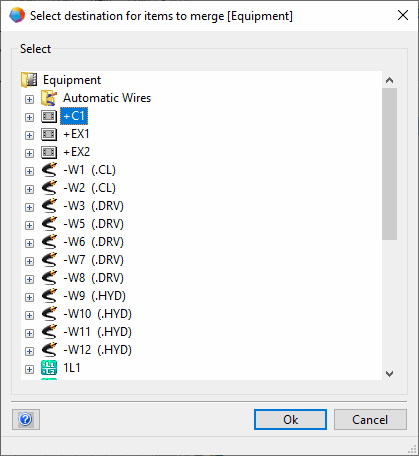
- This opens the Select destination for items to merge dialog.
- Select the target that is to be merged with the copied objects and click OK.
- This copies the sheet or the drawing with all sheets. Units and/or devices associated with the copied sheets are merged with the destination.