Adding and removing columns
You can add or remove columns on worksheets and in the list pane.
You can access the column selection via the following shortcut menus:
- column headers on a worksheet
- column headers in the list pane
- first cell (1st column) of a selected row on the worksheet
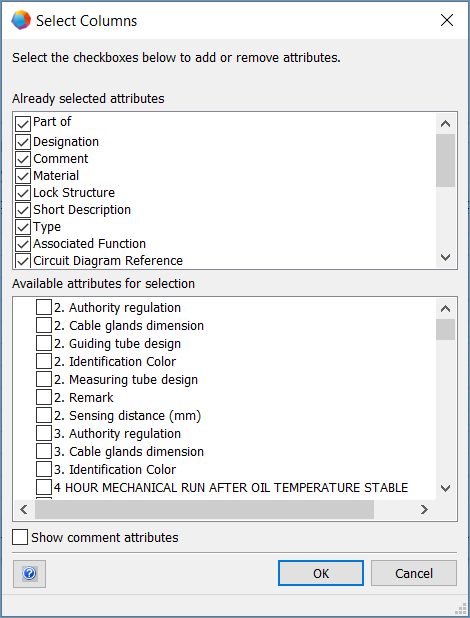
The Select Columns dialog is subdivided into two areas:
- Already selected attributes: List of the attributes currently displayed on the worksheet.
- Available attributes for selection: List of all attributes that can be added.
Different attributes are displayed, depending on the starting point:
- Starting point column header:
All attributes of the database are offered for selection. They are sorted alphanumerically. If there are any attributes defined as Favorite Attribute via their properties dialog, they are displayed at the top of the list under Favorite Attributes. All further attributes are listed under From Database.
- Starting point first cell (1st column) of a selected row:
Only the attributes of the selected object are offered for selection. They are grouped by the tabs/structuring levels.
If you remove the check mark in the Already selected attributes area of a column that is included in the worksheet configuration or that was added to the worksheet, that attribute is displayed in the Available attributes for selection area under From Worksheet Configuration when you open the dialog again.
To add or remove columns
- Open the worksheet or the list pane.
- Right-click a column header or the first cell (1. column) of a selected row on a worksheet.
- On the shortcut menu, click Select Columns.
- In the displayed dialog, select Show comment attributes to additionally display the attribute comments for selection in the Available attributes for selection area.
- Add columns or remove columns:
- Add: In the Available attributes for selection area, check the checkboxes next to the attributes for which you want to add a column.
- Remove: In the Already selected attributes area, remove the check mark for the attributes that you do not want to display any longer.
- Click OK to save your selection.
This function only adds or removes columns in the list pane or on worksheets. If an added attribute at an object is not available on the worksheet or in the list pane, the field is inactive and you cannot enter any information.