Using drag and drop for imports
With Engineering Base, you can import files and directories using drag and drop. This includes multiple selections of files, directories, and directories with substructures. Alternatively, you can use the Insert File function on the shortcut menu to run the import.
To import using drag and drop
- Select the files and/or directories you want to import by drag and drop.
- Press and hold the left mouse button while you drag the objects to their destination.
- Release the mouse button to drop the objects at a place permitted by Engineering Base.
- If you import only files, the selected objects are inserted immediately.
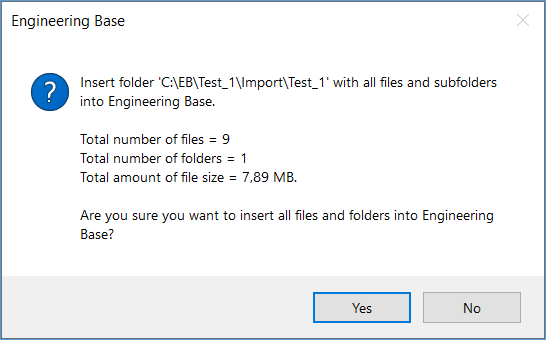
- If your import includes at least one directory, the dialog Engineering Base opens.
- Click Yes to actually import the selected objects.
- The Insert external documents dialog opens indicating the progress of the import operation.
To import files and directories using the shortcut menu
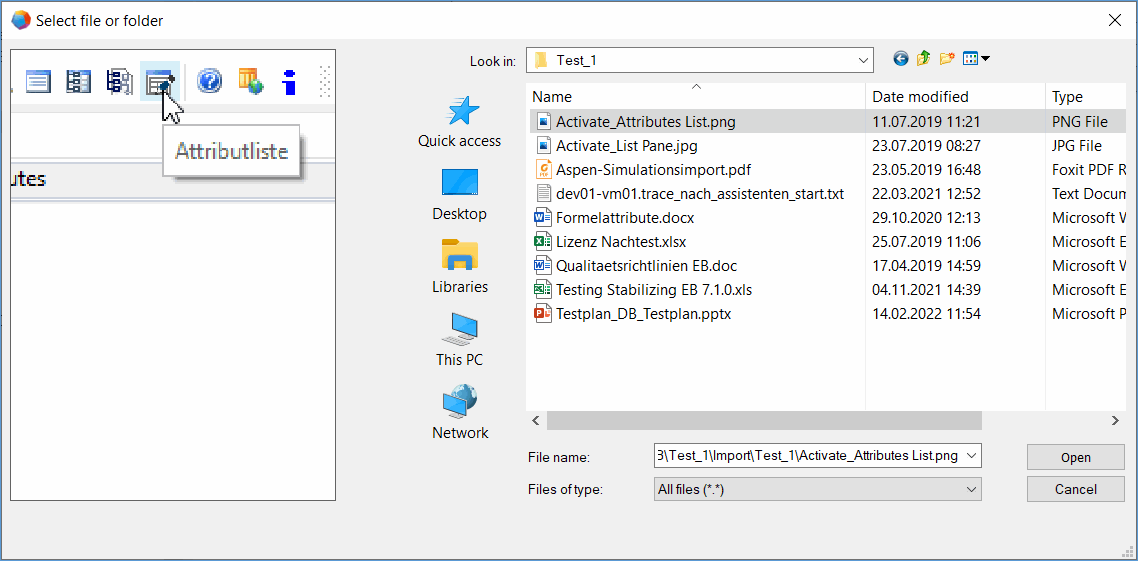
- Select the Documents folder or a subfolder and click Insert File on the shortcut menu.
On the left side of the displayed dialog, you can see some information on the selected file or the file preview. On the right side, you can select the file or folder.
- Select the required file or folder and click Open to confirm your selection.
- If your import includes at least one directory, the dialog Engineering Base opens. If you want to execute the import, confirm the dialog by clicking Yes, otherwise click No to cancel it.
- The files are imported into the selected Documents folder.