List pane
The List pane is a selectable view in the Engineering Base Explorer that displays all sub-objects of an object that is selected in the navigation pane.
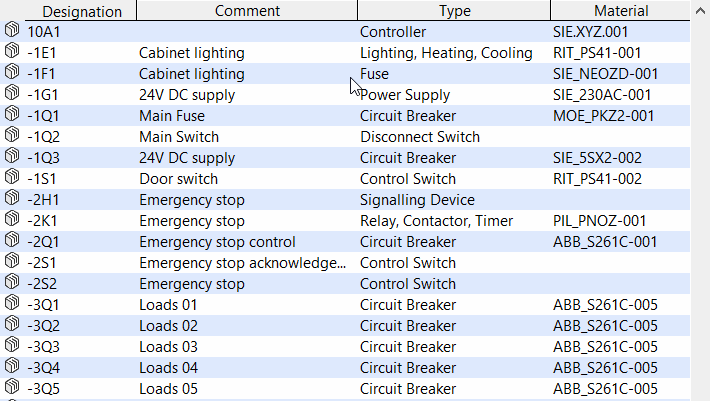
To show or hide the list pane
- On the View menu, click List Pane.
- This shows or hides the list pane.
To add or remove columns
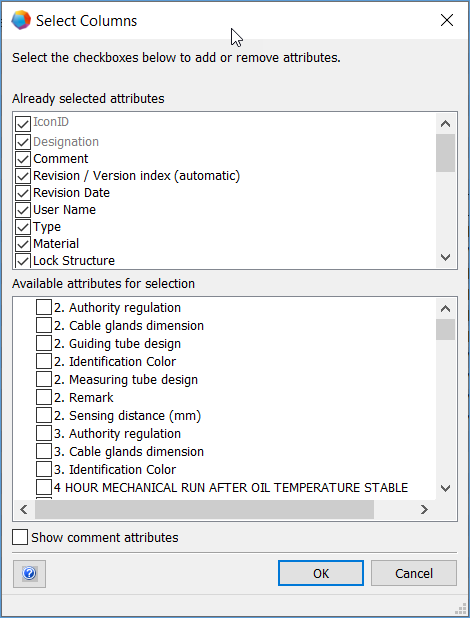
- Right-click a column header and select Select Columns on the shortcut menu.
- If you select the option Show comment attributes, the comment attributes that are activated under Database Properties General/Attribute View are also offered for selection.
- Add or remove columns in the Select Columns dialog:
- Add: In the Available attributes for selection area, check the checkboxes next to the attributes for which you want to add a column.
- Remove: In the Already selected attributes area, remove the check mark for the attributes that you do not want to display any longer.
- Click OK to save your selection.
To sort data by one column
- On the worksheet, right-click the column header and select Sort Ascending or Sort Descending on the shortcut menu.
- This sorts the data.
If you want to have the columns displayed in a specific order, you can move the columns.
To move a column
- Select the column on the worksheet and drag the column to its new position.
Watch the mouse cursor changing while dragging the column.
The mouse cursor indicates the new position in the worksheet.
- The column is displayed at the new position.

To change the width of a column
- In the worksheet, place the cursor on the vertical divider between the column headers.
- The cursor changes to a double-headed column selector: .
- Drag the vertical divider to the new position.
- This changes the width of the column.

If you keep the CTRL key pressed while you click a row in the list pane, you can add single rows to the selection. If you keep the Shift key pressed while you click, you can select a row area.
Using the option Show Attribute Properties of the shortcut menu of a column name, you can open the attribute properties read-only.