Using the Product Guides
AUCOTEC provides you with a comprehensive help system that allows you to find the required information online in the shortest time. The following information supports you in using the Help in an optimal way.
The Product Guides uses a HTML 5 format that dynamically adapts to the screen size to optimally use the available space.
Depending on the screen resolution that is available to the guides, its contents and control elements are displayed differently and they behave differently.
The Product Guides are usually displayed in the language of your installed Engineering Base version. If there are no translated Product Guides available for the set language, the English Guides are displayed instead.
The start page of the Product Guides
The start page displays additional help sources that are available in addition to the Guides.
To access them, click the respective hyperlink in the text. Hyperlinks are highlighted as blue texts.
The Guides are split into two parts.
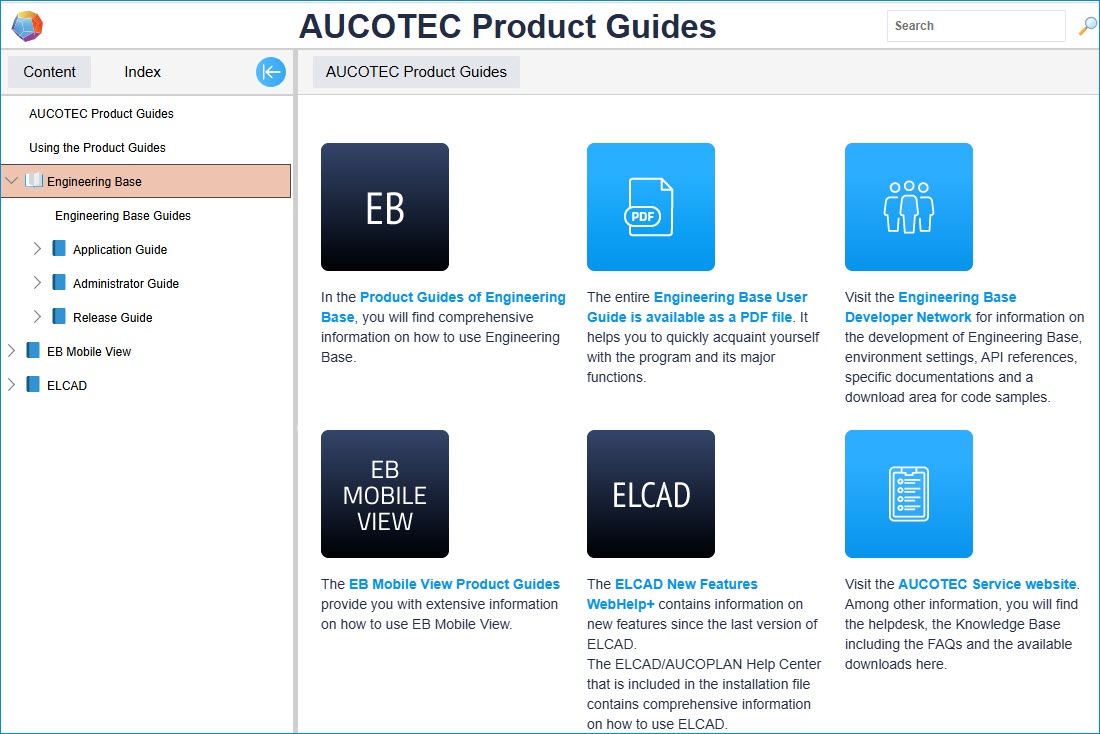
The left side displays the navigation pane, and the right side displays the content of the help pages.
Depending on how you open the Help, the right page either displays the start page or a specific help page.
The navigation pane of the Product Guides
The left side displays a navigation pane with several tabs:
The Contents tab - all help topics at a glance
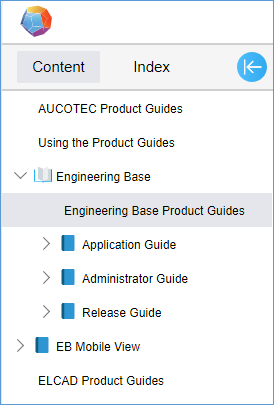
The table of contents displays the help pages structured by books and chapters.
You can either click a book or chapter to display the sub-chapters and help pages it contains, or you can click the arrow next to the book or chapter. To close an opened book or chapter, click the arrow next to it.
Help pages can be opened by a single click. Double-clicking a help page saves the page header as a tab.
The Index tab - finding help topics using keywords
The Index tab displays a list of alphabetically ordered keywords. One or multiple help pages are assigned to them.
To ensure that the number of displayed help pages per keyword remains easy to view and manage, some keywords have a second level. You can recognize these nested keywords by an arrow to the left of the keyword.
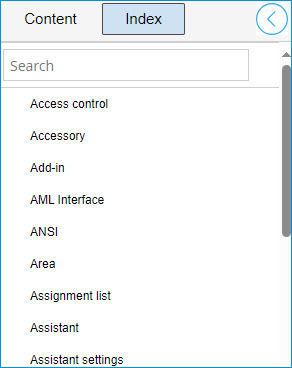
Using the index
- Click to select a keyword.
- If only one help page is assigned to that keyword, it is opened immediately.
- If more than one help page is assigned to the keyword, all help pages that are assigned to that keyword are listed.
- Select a help page and click to open it.
If you click the Content button while a page is opened, the title of that guide page is displayed in blue in the structure of the table of contents. That way, you get an overview on related topics.
Button | Meaning |
|---|---|
Display and hide the navigation pane. If you are working with a low display resolution, for instance because you are working with a mobile device, you can temporarily hide the navigation pane on the left side of the Engineering Base Help to get the maximum possible display space for the help content. To do so, click the button on the upper left. To be able to use the navigation pane again, click the button. |

The Glossary key terms with an explanation of their meaning
The glossary terms are included in the continuous texts of the help page. They are highlighted in a brown color.
To look up the meaning of a glossary term
- Click a glossary term.
- You are directed to a help page containing the definition of the term.
Browsing already opened help pages
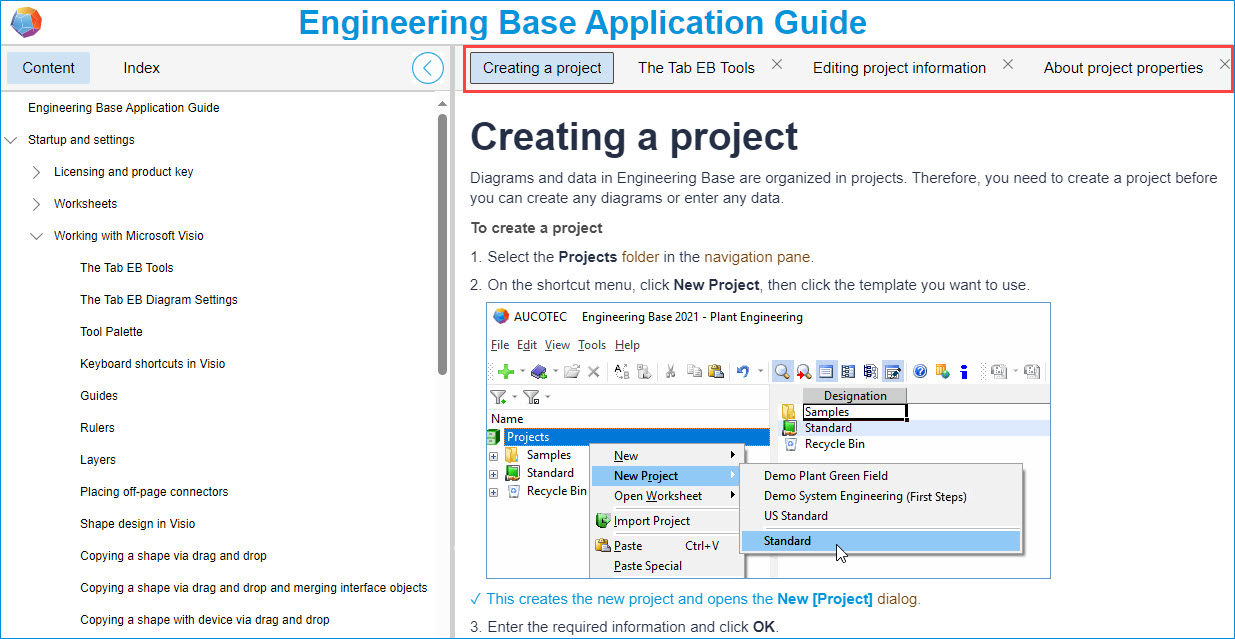
If you double-click to open a help page, the page header is displayed as a tab in the upper area of the help page. To browse between the opened pages, click one of the tabs.