Changing attribute properties
Property | Description |
|---|---|
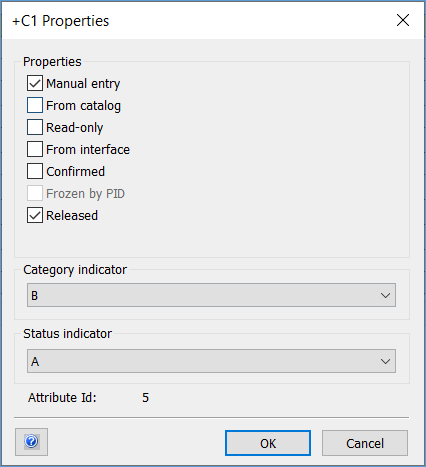
Manual entry | Every time you enter text into a box, the Manual entry property is automatically checked. This information is used by some add-ins to prevent manually entered data from being changed automatically.
|
From catalog | The From catalog property prevents the user from making unintentional changes to information initially coming from the catalog. Replacing a device overwrites data that is protected with the From catalog property in the source. If you select the From catalog property, you can no longer change the attribute contents via the Engineering Base user interface. However, you can still change the contents via applications using the API or the WebService. Example: If you check the From catalog checkbox of attribute Current Rating (AID 10029) of the device in the catalog, this always overwrites the device data in the project. |
Read-only | If the attribute property Read-only is set, you are prevented from editing the related attribute information. Attributes with the property Read-only set are displayed with a gray background color. |
From interface | When updating objects that are connected via a black box relationship, all attributes with the property From interface are overwritten with the values from the source for the objects already copied to the target. |
Confirmed | For the general attributes of an object, an inspection status can be set in Engineering Base. By default, the inspection status is not set. For virtual attributes, the inspection status cannot be set. An attribute with the inspection status set is displayed with a dark green text color in the dialog and lists. |
Frozen by PID | This property will be set by the P&ID Freeze assistant if a sheet is frozen. The attributes marked in this way are read-only; they will be highlighted in a gray background color. If the attribute did not contain any value when the P&ID Freeze assistant was started, these attributes can still be edited. |
Released | Attributes with this property can only be changed by specific users and user groups. The read-only content of the attribute is highlighted in a dark yellow. The following rules need to be followed:
|
Category indicator
If Attribute categories are defined in the database, you can assign a category to the attribute via a drop-down list.
To be able to select attribute categories, the respective permission must be assigned under Access control in the project properties.
Status indicator
If attribute status indicators are defined in the project, a status can be assigned to the attribute using a selection list.
To be able to assign status indicators, the respective permission must be assigned under Access control in the project properties.
To change the status for a property
- Open the Modify dialog of an object by clicking Open on the shortcut menu.
- In the dialog, select the field of the attribute and click Properties on the shortcut menu.
- This opens the Properties dialog for the attribute. For information, the attribute identifier is displayed, too.
- Select the properties that you want to assign to the attribute.
- If you want to associate an attribute status or an attribute category with the attribute, click below Status indicator or Category indicator. This displays a drop-down list of the predefined statuses and categories. Select the favored status.
- Click OK to save the settings.

To change the properties of an attribute for multiple objects, create a worksheet, select the cells, and on the shortcut menu, click Properties.