3.3 Creating a terminal diagram for a single or several terminal blocks
Terminal diagrams clearly display all terminals of a block with the connected cables in the form of a graphic table.
Terminal diagrams, once created, display the current status of the block each time they are called. Therefore they do not have to be created anew following changes.
How to create a terminal diagram for single blocks
1. In the Engineering Base Explorer, select the block –X1 under Equipment and the location +C1.
2. In the context menu, execute New Report / Terminal Diagram for the block.
3. The sheet dialog for the new terminal diagram is opened.
4. Enter 1-KL in the dialog line sheet designation.
5. The terminal diagram is created with OK.
6. Via the dialog line Part of, the sheet 1-KL can also be stored under a drawing or folder
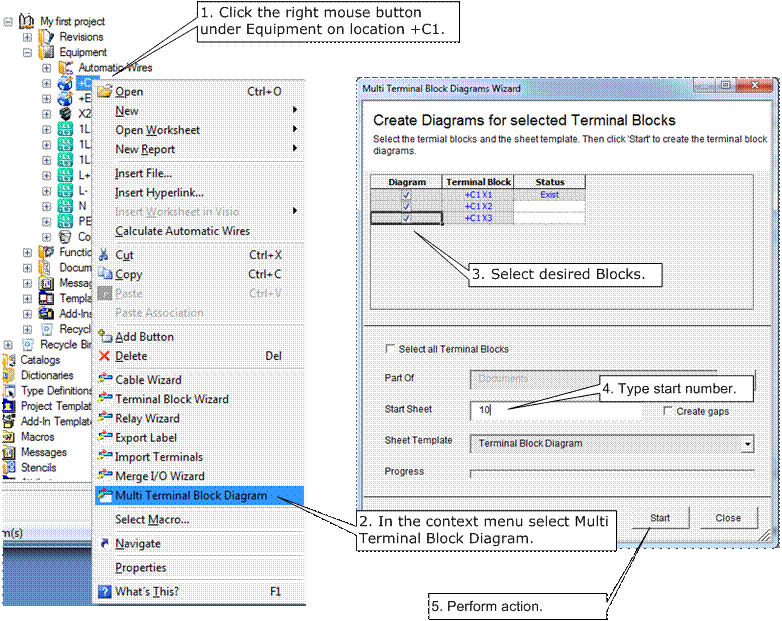
How to create several terminal diagrams in one step
1. Mark a higher-order location or the Equipment folder with a right mouse click.
2. Start the Multi Terminal Diagram wizard in the context menu.
3. Mark the blocks for which the terminal diagram is to be created.
4. Enter 10 as the starting sheet.
The terminal diagrams are created and the status is changed by pressing Start.