2.28 Switching between Diagram and Navigation
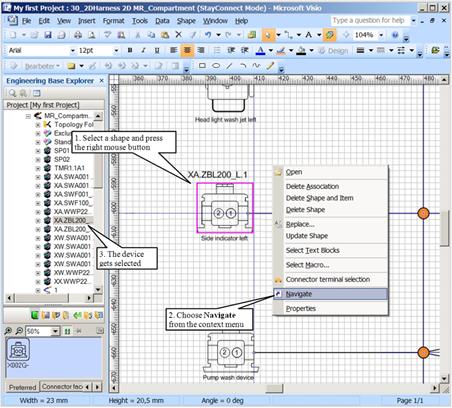
How to switch from the diagram to the navigation pane
1. Select a shape and press the right mouse button on it.
2. Choose Navigate in the context menu.
3. The device gets selected in the navigation pane.
 The "Navigate"-Order only exist for shapes, which are connected to an element of the database.
How to switch from the navigation pane to the diagram
1. Expand the device in the navigation pane.
2. Click with the right mouse button on the short-cut icon.
3. Choose Open with Visio from the context menu.
4. The shape of the device gets selected and automatically centered in Visio
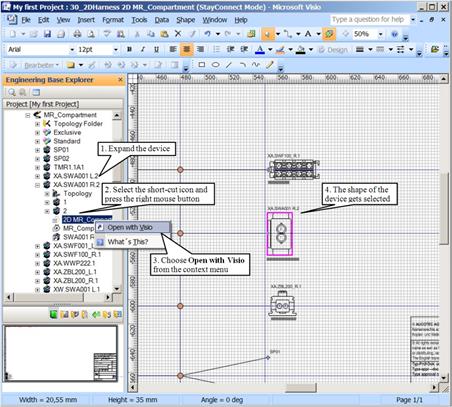
If the sheet is not already open, it will be automatically opened with Visio for further editing.
To increase the detail with the selected shape, select the Visio menu View and choose Zoom. Instead you can also use shortcuts (Pressed [Ctrl] + [Shift] key and mouse wheel) for zooming.