Preview pane
The preview pane shows the selected sheet or stencil. Stencils or shapes can be copied from a drawing to the preview pane via drag and drop.
To show the preview pane
- On the View menu, click Preview.
- This adds the preview pane.
To change the position of the preview pane
- On the View menu, click Preview Position.
- This toggles the position for the preview pane between three possible positions.
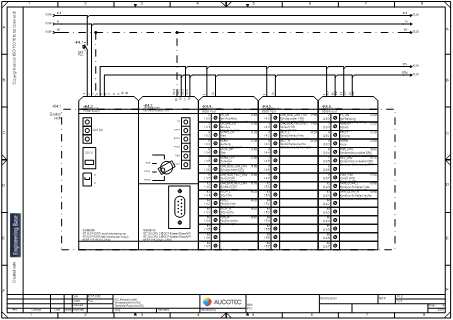
To copy a stencil or shape to the preview pane
- On the drawing, click the object to be copied.
- Drag the object to the preview pane with your mouse and then drop it there.
Keep the Shift key pressed during this operation if you want to replace an object in the preview pane.