Folders
A folder is a structural element in Engineering Base to organize data. Folders and sub-folders can be used to organize data. The larger the project, the more important it becomes to structure the information. Information can be found more quickly in well-structured projects. This minimizes the time needed to find information and makes working easier, faster, and more efficient.
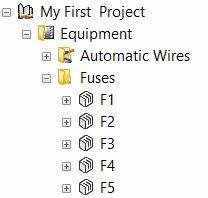
To create a multi-level document structure that can be considered in the document designation, folders of the type Document Level are available in the Documents folder.
If you have selected the option Peer-to-peer cross-references for equipment are created only within the same drawing or folder in the project properties under Visio Settings/Cross-references, the system attribute Peer references only within this level is available at the folder. Using this attribute, you can control that cross-references for equipment are created on sheets within the folder.
Operation | Procedure |
|---|---|
To create a folder |
|
To delete a folder |
|
To expand a folder |
|
To close a folder |
|
To define the position of a folder independent from the designation
- Select the folder and click Open on the shortcut menu.
- Enter the required position in the Position attribute.
- The folder is placed at the selected position.
The Position Attribute is taken into account on creating potential cross-references. On creating the reference chain, the position of the folders, the drawings and the sheets in the Explorer is taken into account.
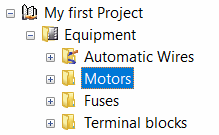
For a better performance, the [+] symbol does not indicate that an object has nested objects.
To associate a documents sub-folder with an aspect (Function, Equipment, Location)
- In the project Properties, expand the node General/Designation Standards and check the option Use aspects (IEC 81346) for drawing name.
- Restart Engineering Base.
- The Associated Aspect attribute is now available for all sub-folders of the Documents folder.
- On the shortcut menu of the sub-folder, click Open. In the Modify dialog, click the button of the attribute Associated Aspect and select the required aspect in the selection dialog.
- The name of the associated aspect is automatically copied as folder name. If the name of the associated aspect is changed, the folder name is also changed automatically.
If a folder with an associated aspect is copied into another project, the association is lost.

To associate documents sub folders with an aspect by means of a worksheet
- Open the Folders worksheet from the Documents folder or a respective sub-folder.
If the Folders worksheet is not available in your project, you can copy it into your project from the standard template project Templates/Worksheets/Favorites.
Via the icon, you can display the entire folder structure.
- Add the Associated Aspect column to the worksheet.
- Click a cell in the Associated Aspect column and select Select Associated Aspect on the shortcut menu.
- In the displayed selection dialog, select the required aspect and click OK.
The name of the associated aspect is automatically copied as folder name. If the name of the associated aspect is changed, the folder name is also changed automatically.
